WordPress Security Checklist: 18 Steps to Protect Your Site
Use this WordPress security checklist to protect your site: updates, 2FA, backups, user roles, login protection, file settings and a hacked-site plan.
Quick Answer
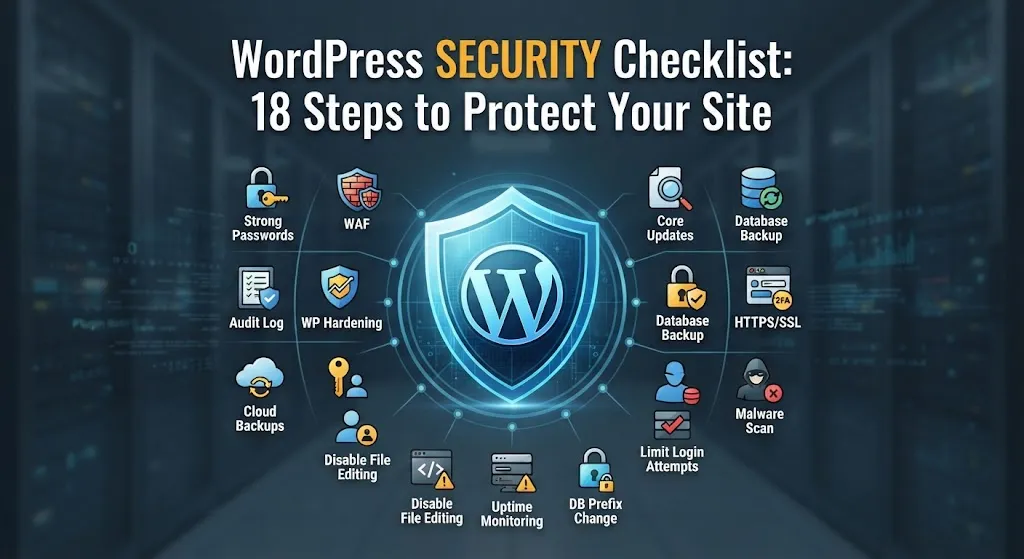
A WordPress security checklist covers the basics that stop most attacks: keep WordPress, themes and plugins updated, use strong unique passwords and two-factor authentication, give users only the access they need, run tested backups, use HTTPS, limit login attempts, remove unused plugins and choose secure hosting.
A WordPress security checklist works because most hacked sites are not victims of genius attackers. They are sites with an old plugin, a weak password or no backup.
That is good news, because the basics are within reach. This WordPress security checklist is ordered by importance and written for owners who are not developers. It follows the official WordPress hardening guide, which I recommend reading for more depth.
I am Muhammad Muheet, a WordPress developer in Multan, and I fix hacked and broken sites as part of my work. Security is never perfect, so the goal is to reduce risk and recover fast.
The WordPress Security Checklist
Updates and Software
1. Keep WordPress core updated. Security fixes ship in updates. Turn on automatic minor updates, which WordPress enables by default for many sites.
2. Update plugins and themes promptly. Outdated plugins are a very common entry point. Check weekly, and test major updates on a staging copy for important sites.
3. Delete what you do not use. Deactivated plugins and old themes still sit on the server. Remove them.
4. Install only trusted code. Use plugins and themes from reputable sources, with recent updates and active support. Avoid "nulled" copies of paid plugins, which often contain malware.
5. Run a current PHP version. Ask your host which PHP version you use and move to a supported one, after testing.
Accounts and Logins
6. Use strong, unique passwords. A password manager makes this easy. Never reuse a password between sites.
7. Turn on two-factor authentication (2FA). It stops many attacks even when a password leaks. Use an app-based code where possible.
8. Give people the lowest role they need. An editor does not need to be an administrator. Review the user list and remove old accounts.
9. Avoid the default "admin" username. Use a unique username for administrators.
10. Limit login attempts. Many hosts and security plugins can block repeated failed logins.
Protection and Recovery
11. Run automatic backups and test a restore. Keep copies off the server. A backup you have never restored is a hope, not a plan. Check how often your site changes, then set the schedule: daily for active stores, weekly may be enough for a small brochure site.
12. Use HTTPS everywhere. An SSL certificate encrypts data between visitors and your site. Most hosts offer one free.
13. Use a reputable security layer. A firewall and malware scanner, either from your host or a security plugin, helps. One well-configured tool is better than several overlapping ones.
14. Choose secure hosting. Good hosts isolate accounts, patch servers and offer firewalls and backups. If your hosting is the weak link, plugins cannot fully fix it.
Hardening Settings
15. Check file permissions. Files and folders should not be writable by everyone. Avoid permissions like 777. The hardening guide lists recommended values.
16. Disable file editing in the dashboard. WordPress lets admins edit theme and plugin code from the dashboard. Turning that off reduces damage if an admin account is taken. A developer can do this by setting DISALLOW_FILE_EDIT in wp-config.php.
17. Protect wp-config.php and keep security keys current. It holds your database details. Your host or developer can restrict access and refresh the keys.
18. Monitor and get alerts. Uptime monitoring and security alerts help you notice problems early, which matters as much as prevention.
Risk Table
| Risk | What it looks like | Prevention |
|---|---|---|
| Outdated plugin | Unknown admin user, redirects to spam sites | Updates, remove unused plugins |
| Weak or reused password | Unexpected logins, changed content | Password manager, 2FA |
| Too many admins | Mistakes or misuse through one stolen account | Least-privilege roles |
| No tested backup | Long downtime after a problem | Off-server backups and restore tests |
| Nulled themes and plugins | Hidden malware, strange code | Buy or download from trusted sources |
| Weak hosting | Repeated infections, slow site | Move to a host with isolation and firewalls |
| Writable files | Malicious file uploads | Correct permissions, disable file editing |
Do You Need a Security Plugin?
Not always, but most sites benefit from some protection layer. Check what your host already provides. Then add one plugin only if it fills a gap: firewall, scanner, login protection or alerts.
Be careful with marketing claims. Ask what is monitored, what it blocks and what happens when it flags something. Automation can help here, but it does not replace updates and backups. See AI automation for WordPress for what is realistic.
What to Do If Your Site Is Hacked
Stay calm and work in this order:
- Do not delete everything. Evidence helps find how it happened.
- Contact your host. Many can identify the infected files or restore a clean copy.
- Take the site offline or into maintenance mode if visitors are at risk.
- Restore from a clean backup made before the problem started, if you have one.
- Change all passwords: WordPress admins, hosting, database, FTP or SSH and email.
- Update everything and remove the vulnerable plugin or theme that let them in.
- Scan again and check Search Console for security warnings.
- Find the cause. If you do not, it can happen again.
If you are unsure, hire help. I offer error and malware fixing with a free initial look at what is wrong.
Make Security a Routine
Security is not a one-time project. Put these on a schedule:
- Weekly: check for updates and review alerts.
- Monthly: review users, test a backup restore, remove unused plugins.
- After changes: re-check after installing a plugin, changing hosts or redesigning.
A WordPress maintenance plan handles this for you. Add security checks to your website launch checklist as well, and keep an eye on speed with how to speed up a WordPress site, since heavy plugin stacks hurt both.
Where I Can Help
I provide WordPress maintenance, hardening and recovery for clients in the USA, UK, Netherlands and Italy. I offer a free initial audit, flexible installments, competitive pricing and 4 weeks of post-development support on website projects. You can book a free consultation or message me on WhatsApp through the contact page.
Work through this WordPress security checklist once, then keep the routine going. Most sites need only the basics done consistently.