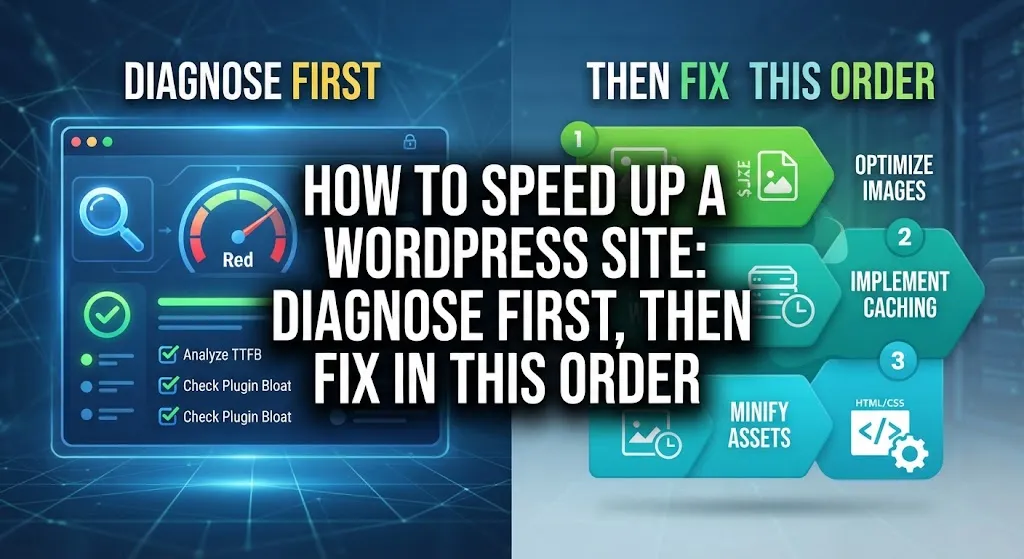
How to Speed Up a WordPress Site: Diagnose First, Then Fix in This Order
How to speed up a WordPress site: diagnose first with PageSpeed Insights, then fix hosting, caching, images, plugins and scripts in order of impact.
Quick Answer
To speed up a WordPress site, measure first with PageSpeed Insights, then fix in order of impact: better hosting, page caching, properly sized images, fewer and lighter plugins, a lean theme, reduced scripts and a clean database. Aim for good Core Web Vitals: LCP of 2.5 seconds or less, INP of 200 milliseconds or less and CLS of 0.1 or less.
Slow sites lose visitors quietly. People do not complain, they just leave, so learning how to speed up a WordPress site pays off fast.
The mistake most owners make is installing a speed plugin and hoping. A better approach to how to speed up a WordPress site is to find the real bottleneck first, then fix things in the right order. I am Muhammad Muheet, a WordPress developer in Multan, and this is the workflow I would follow.
Step 1: Measure Before You Change Anything
Test your key pages (home, a top article, a product page, checkout if you sell) in PageSpeed Insights. Test mobile, since that is where most sites struggle.
Look at the real-user data section first if it is available, then the lab results. Google's Web Vitals define the three main metrics and their "good" thresholds, measured at the 75th percentile of visits:
| Metric | What it measures | Good |
|---|---|---|
| LCP (Largest Contentful Paint) | How fast the main content loads | 2.5 seconds or less |
| INP (Interaction to Next Paint) | How quickly the page reacts to taps and clicks | 200 milliseconds or less |
| CLS (Cumulative Layout Shift) | How much the layout jumps around | 0.1 or less |
Write down your starting numbers. Without a baseline you will not know what helped.
Step 2: Match the Symptom to the Likely Cause
| Symptom | Likely cause | Where to start |
|---|---|---|
| Slow first load, long wait before anything appears | Weak hosting, no page caching | Hosting and caching |
| Hero image appears late (poor LCP) | Oversized or lazy-loaded hero image | Image size and priority |
| Page feels laggy when tapping (poor INP) | Heavy JavaScript, many plugins, page builder bloat | Scripts and plugins |
| Content jumps while loading (poor CLS) | Images without dimensions, late-loading ads or fonts | Image dimensions, font loading |
| Admin area is slow | Heavy plugins, database bloat, low server resources | Plugin audit, database, hosting |
| Fast on desktop, slow on mobile | Large images, heavy scripts | Responsive images, script reduction |
Fix 1: Check Your Hosting
Cheap shared hosting is often the hidden cause. If your server takes a long time to respond, nothing else can fully compensate.
Signs include slow admin, slow responses even on simple pages and traffic spikes causing errors. A decent host uses up-to-date PHP, offers server-level caching and has reasonable resource limits. Ask your host which PHP version you run and update it, after testing on a staging copy.
Fix 2: Turn On Caching
Without caching, WordPress builds each page from scratch for every visitor. Page caching saves a ready-made version and serves it instantly.
Many hosts include caching. If yours does not, a well-known caching plugin is a good fit. Use one caching solution, not two. For stores, exclude cart, checkout and account pages from caching because they contain customer-specific data.
Fix 3: Fix Your Images
Images are often the largest files on a page.
- Resize to the size you display. A 4000 pixel photo shown at 800 pixels wastes bandwidth.
- Use modern formats. WordPress supports WebP, and it is usually smaller than JPEG at similar quality.
- Compress. Use a trustworthy optimization plugin or compress before upload.
- Set width and height. This helps reduce layout shifts.
- Lazy-load below-the-fold images, not the main hero image. WordPress already adds lazy loading to images by default, but the main image at the top should load right away, since delaying it hurts LCP. See web.dev's guide to optimizing LCP.
Fix 4: Audit Your Plugins
More plugins do not always mean slower, but each one can add scripts, styles and database queries.
- Deactivate and delete plugins you do not use.
- Replace multiple small plugins with one good one where sensible.
- Test the effect: deactivate a suspect plugin on a staging site, then run a speed test.
- Be wary of plugins that load their files on every page when they are only needed on one.
If INP is poor, heavy JavaScript is a common culprit. See web.dev's guide to optimizing INP.
Fix 5: Choose a Lean Theme and Builder Setup
A heavy multipurpose theme with dozens of features you do not use can load a lot of code. A lightweight theme with only what you need loads faster.
Page builders are convenient, but they add markup and scripts. They can be fine when used carefully. Avoid stacking many animations, sliders and widgets on one page.
Fix 6: Reduce Scripts and Third-Party Tools
Chat widgets, tracking pixels, heat maps, social feeds and embedded videos each add requests. Keep what earns its place and remove the rest.
Load heavy embeds only when a visitor clicks play, and load tracking scripts only where they are needed.
Fix 7: Stop Layout Shifts
If content jumps while loading, visitors may tap the wrong thing. Common fixes are setting image dimensions, reserving space for ads and banners, and loading fonts sensibly. See web.dev's guide to optimizing CLS.
Fix 8: Use a CDN If Your Visitors Are Far Away
A content delivery network stores copies of static files on servers around the world. It helps most when your visitors are spread across regions or far from your host. It is less important for a local audience close to your server.
Fix 9: Clean the Database and Keep Things Updated
Old revisions, spam comments, expired transients and leftover plugin data can build up. Clean carefully, with a backup first, and do not delete things you do not understand.
Keep WordPress core, themes and plugins updated. Updates often include performance and security improvements. The official WordPress guide to optimization explains these topics in more depth.
How to Speed Up a WordPress Site: A Simple Order of Operations
- Test and record baseline numbers.
- Fix hosting and PHP version if clearly weak.
- Turn on caching.
- Optimize images, especially the top image.
- Remove or replace heavy plugins.
- Reduce third-party scripts.
- Fix layout shifts.
- Add a CDN if useful.
- Retest and compare.
Change one thing at a time where you can, so you know what worked.
Speed and Sales
Slower pages make shopping harder, especially on mobile. If you run a store, speed work should cover product, category, cart and checkout pages, not just the homepage. See how it fits with the rest of your store in how to increase WooCommerce sales, and compare platforms in WooCommerce vs Shopify.
Speed and SEO
Page experience is one of many signals, and fast pages help visitors stay and read. But speed will not rescue weak content. Handle fundamentals first with WordPress SEO for beginners, and test speed before every launch with the website launch checklist.
Keep It Fast
Speed drifts as you add plugins, images and scripts. Re-test monthly and after major changes, and include checks in a WordPress maintenance plan.
When to Get Help
If your numbers are poor after the basics, or the problem is custom code, a heavy theme or server issues, an expert can find the bottleneck faster. I offer speed optimization, a free initial audit, flexible installments and 4 weeks of post-development support on website projects. You can book a free consultation or message me on WhatsApp through the contact page.
Knowing how to speed up a WordPress site is mostly knowing what to measure and what to fix first. Start with the numbers, then work down the list.